
AI Powered UX Flows are here

The UX role just changed. I recorded the proof.

For the past few days I’ve been testing a workflow that I think genuinely shifts how design fits into the development pipeline — not theoretically, but in practice, on real projects.

Here’s what I did:

I connected Claude Code to Figma via the Model Context Protocol (MCP), gave it access to an actual design system — with published components, variables, and tokens — and asked it to build a screen.

It didn’t generate random shapes or placeholder layouts. It pulled real component instances from the library, respected the token structure, and flagged a color that deviated from the system — then corrected it automatically.

The whole thing took minutes. Not hours.

I’ve been a UX designer long enough to know the difference between a demo trick and a workflow change. This is a workflow change.

What it means practically:
– Repetitive screen assembly is no longer a designer’s job
– Design system quality becomes the actual leverage point
– The designer’s role shifts from screen-builder to systems architect and decision-maker

What it doesn’t mean: junior designers are finished, or prompts replace taste, or AI understands user psychology. It doesn’t. You still need someone who knows what a good system looks like, what the user actually needs, and when the output is wrong.

But if your days are still full of dragging components and tweaking auto-layout? That time is now available for something better.

Watch the full walkthrough.


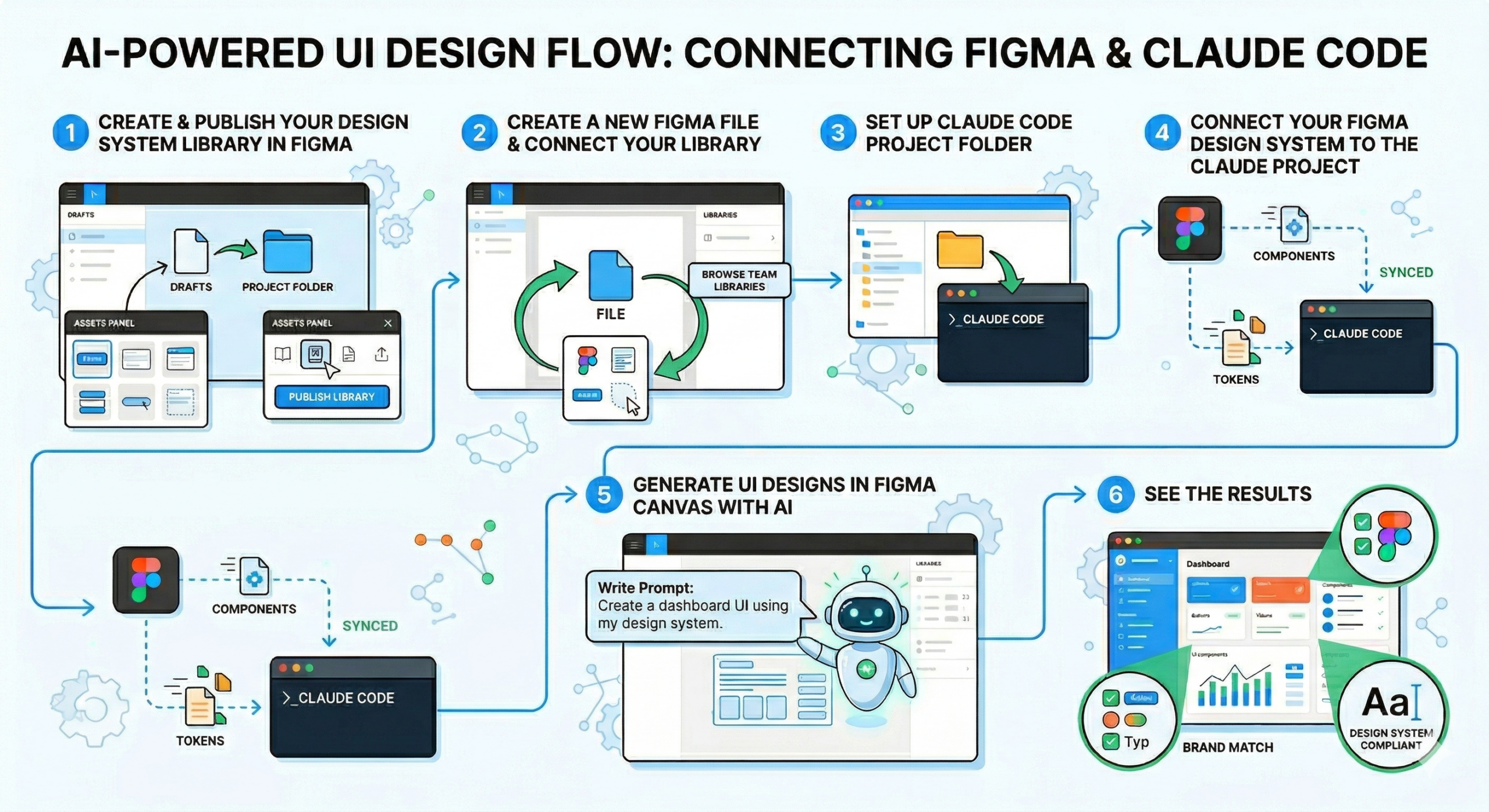
Create & Publish Your Design System Library in Figma

Go to Figma Community → Filters → Design Resources → UI Kits.

Pick a simple design system (or use your own).

Open it → Duplicate to your drafts.

Important: Move the file out of drafts into a real project folder.


Open the file → Assets panel → Click the book icon (Libraries).

Publish the library so other files can use it.


Create a New Figma File & Connect Your Library


Create a brand-new design file.


Assets panel → Click Libraries icon or “Browse team libraries”.

Find and add your published design system.

Now you can drag components from the library into your canvas.


Set Up Claude Code Project Folder


On your computer, create a completely empty folder for the project.

Open Claude Code (or Claude desktop + terminal) inside that folder (don’t launch it from desktop).

This folder will hold all generated files and code.


Connect Your Figma Design System to the Claude Project


Link the published Figma library to your Claude Code project (exact clicks shown in video).

Claude now “knows” your components, colors, styles, and tokens.


Generate UI Designs in Figma Canvas with AI


In Figma, use the new AI agent (powered by Claude).

Write a prompt describing the UI you want.

The AI generates full layouts using your exact design system components (no more fixing generic AI output).


See the Results

Review the AI-generated designs — they already match your brand/styles.